indiashouldknow.com

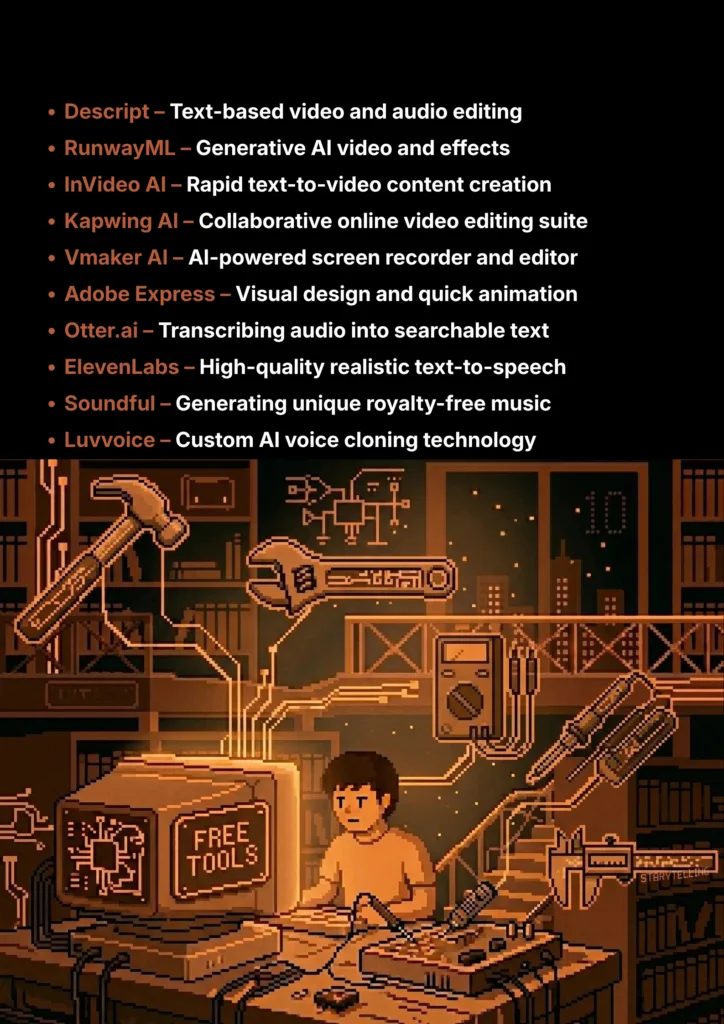
10 Great Free Tools For Audio & Video Editing.

10 Great Free Tools For Audio & Video Editing.

From creating professional voiceovers to editing videos with simple text commands, these free AI assistants will revolutionize your student projects.

You have a great idea for a video project, but the thought of spending hours editing, recording a clear voiceover, and finding the right background music feels completely overwhelming. For most students, creating high-quality audio and video content seems to require expensive software and years of technical skill.

But what if you had an AI-powered production studio on your computer, ready to help you edit videos, generate realistic voiceovers, and create custom music for free?

That’s exactly what the latest AI tools offer. This guide is for students who need to create professional-grade multimedia content without a professional budget. We’ve done a deep dive to find the best AI tools for audio and video that have incredible “free forever” plans or very generous free tiers, perfect for long-term use on your academic and personal projects.

What Can You Actually Do With These AI Tools?

AI Tools Capabilities - India Should Know

Before we dive into the list, it’s helpful to understand what makes these tools so game-changing for students.

  • Edit Videos by Editing Text: This is the fastest way to edit. You can simply delete words from the transcript to cut the corresponding video and audio instantly.
  • Create Realistic Voiceovers: You can turn your script into a high-quality, human-sounding voiceover in seconds, eliminating the need for an expensive microphone.
  • Generate Royalty-Free Music: Create custom background music that perfectly fits the mood and length of your video without worrying about copyright issues.
  • Automate Tedious Tasks: Let AI handle time-consuming tasks like removing background noise, adding subtitles, and stripping away filler words like “ums” and “ahs.”

Quick Comparison Table

AI Audio & Video Tools Comparison Table - India Should Know
Tool Name Best For Pricing Model Ease of Use
Descript All-in-One Video & Audio Editing Freemium Beginner
RunwayML AI Video Generation & Effects Freemium (with credits) Intermediate
InVideo AI Text-to-Video Creation Freemium Beginner
Kapwing AI Quick & Easy Online Video Editing Freemium Beginner
Vmaker AI AI Video Editor & Screen Recorder Freemium Beginner
Adobe Express All-in-One Video & Design Freemium Beginner
Otter.ai Transcribing Audio to Text Freemium Beginner
ElevenLabs Realistic Text-to-Speech Freemium (with credits) Beginner
Soundful AI Music Generation Freemium Beginner
Luvvoice AI Voice Cloning & TTS Freemium (with credits) Beginner
10 Best AI Audio & Video Tools - India Should Know
Descript

1. Descript

Descript is a revolutionary tool that changes the entire video editing process. Instead of scrubbing through a timeline, you edit your video by simply editing its automatically generated text transcript. If you want to cut a section of your video, you just delete the corresponding words in the text. It also includes an AI voice cloner, an AI green screen effect, and tools to automatically remove filler words.

  • Best For: The all-in-one solution for text-based video and audio editing.
  • Use Case Example: A student records a 15-minute presentation and uses Descript to automatically remove all the "ums" and "ahs" with a single click.
  • Pricing Details: Excellent Freemium Model. Free plan includes 1 hour of transcription and one watermark-free export per month.
  • What You’ll Need: The Descript desktop app for Mac or Windows.
  • Learning Curve: Beginner. The core concept of editing text is very intuitive.
  • What to Watch Out For: Limited watermark-free exports on the free plan; finalize your project before exporting.
RunwayML

2. RunwayML

Runway is at the cutting edge of AI video. It's a web-based creative suite that feels like a magic toolbox for filmmakers. You can generate video clips from text prompts, extend existing videos, and use "Magic Tools" to remove backgrounds or paint out unwanted objects with professional accuracy.

  • Best For: State-of-the-art AI video generation and magical special effects.
  • Use Case Example: A student making a short film prompts for "a futuristic cityscape at sunset" to generate high-quality B-roll instantly.
  • Pricing Details: Freemium (with credits). Free "Basic" plan gives you a starting balance of 125 credits.
  • What You’ll Need: A web browser.
  • Learning Curve: Intermediate. Advanced tools take some experimentation to master.
  • What to Watch Out For: One-time credit system on the free plan; credits do not replenish monthly.
InVideo AI

3. InVideo AI

InVideo AI is designed to be the fastest way to go from an idea to a finished video. You provide a prompt describing your topic, tone, and audience, and the AI generates a complete video with a script, voiceover, stock footage, and background music in minutes.

  • Best For: Quickly creating complete videos from a single text prompt.
  • Use Case Example: Creating a 2-minute explainer video about the moon landing by simply typing a descriptive prompt.
  • Pricing Details: Generous Freemium Model. Free plan allows creation and export with watermarks.
  • What You’ll Need: A web browser.
  • Learning Curve: Beginner. Prompt-based workflow is extremely simple.
  • What to Watch Out For: Watermarks on the free plan and limited creative control compared to timeline editors.
Kapwing

4. Kapwing

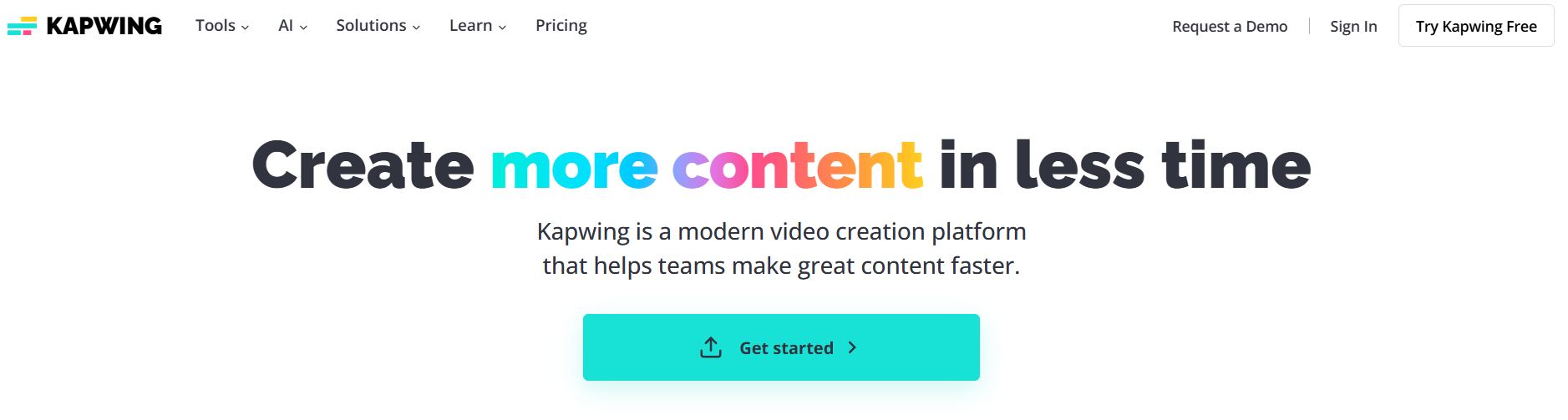
Kapwing is a collaborative online video editor that’s as easy to use as a Google Doc. Its AI tools automate tedious tasks like subtitle generation, background removal, and cleaning up audio noise, making it perfect for rapid student group projects.

  • Best For: A fast, easy, and collaborative online video editor with smart AI tools.
  • Use Case Example: A student team collaborates on a video in real-time, using AI to auto-subtitle their presentation for accessibility.
  • Pricing Details: Excellent Freemium Model. Free plan allows unlimited watermark-free exports for videos under 4 minutes.
  • What You’ll Need: A web browser.
  • What to Watch Out For: The 4-minute limit for watermark-free exports on the free plan.
Vmaker AI

5. Vmaker AI

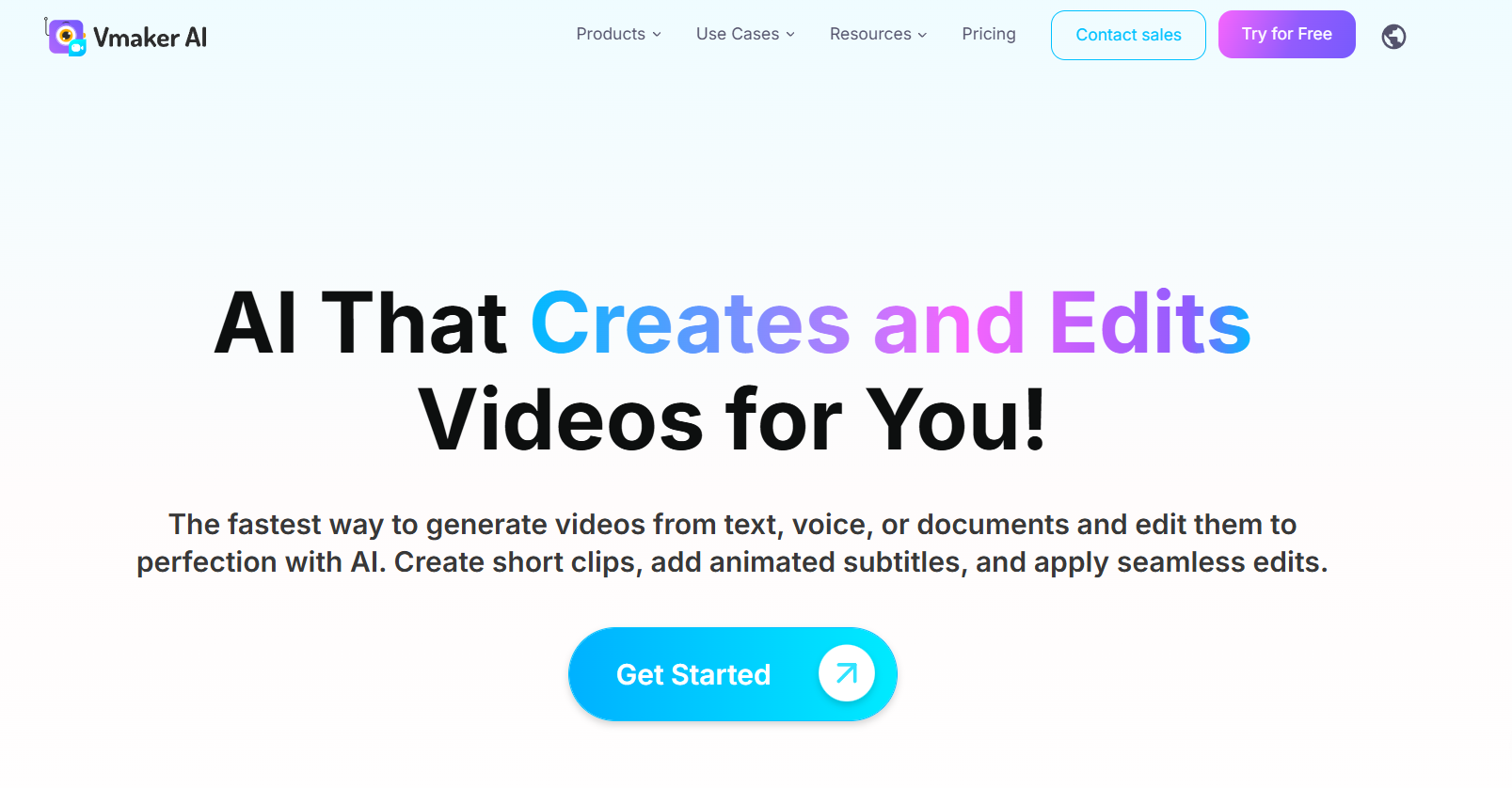
Vmaker AI combines a powerful screen recorder with an AI-driven editor. It’s perfect for creating tutorials or software demos, automatically finding highlights and removing silences to turn long recordings into polished final products instantly.

  • Best For: An AI-powered screen recorder and video editor for tutorials.
  • Use Case Example: A computer science student records a coding demo and uses the AI editor to automatically cut out pauses and mistakes.
  • Pricing Details: Generous Freemium Model. Free plan allows unlimited videos up to 7 minutes.
  • What You’ll Need: Vmaker desktop app for Mac or Windows.
  • Learning Curve: Beginner. Straightforward process from recording to editing.
  • What to Watch Out For: Videos on the free plan will include a Vmaker watermark.
Adobe Express

6. Adobe Express

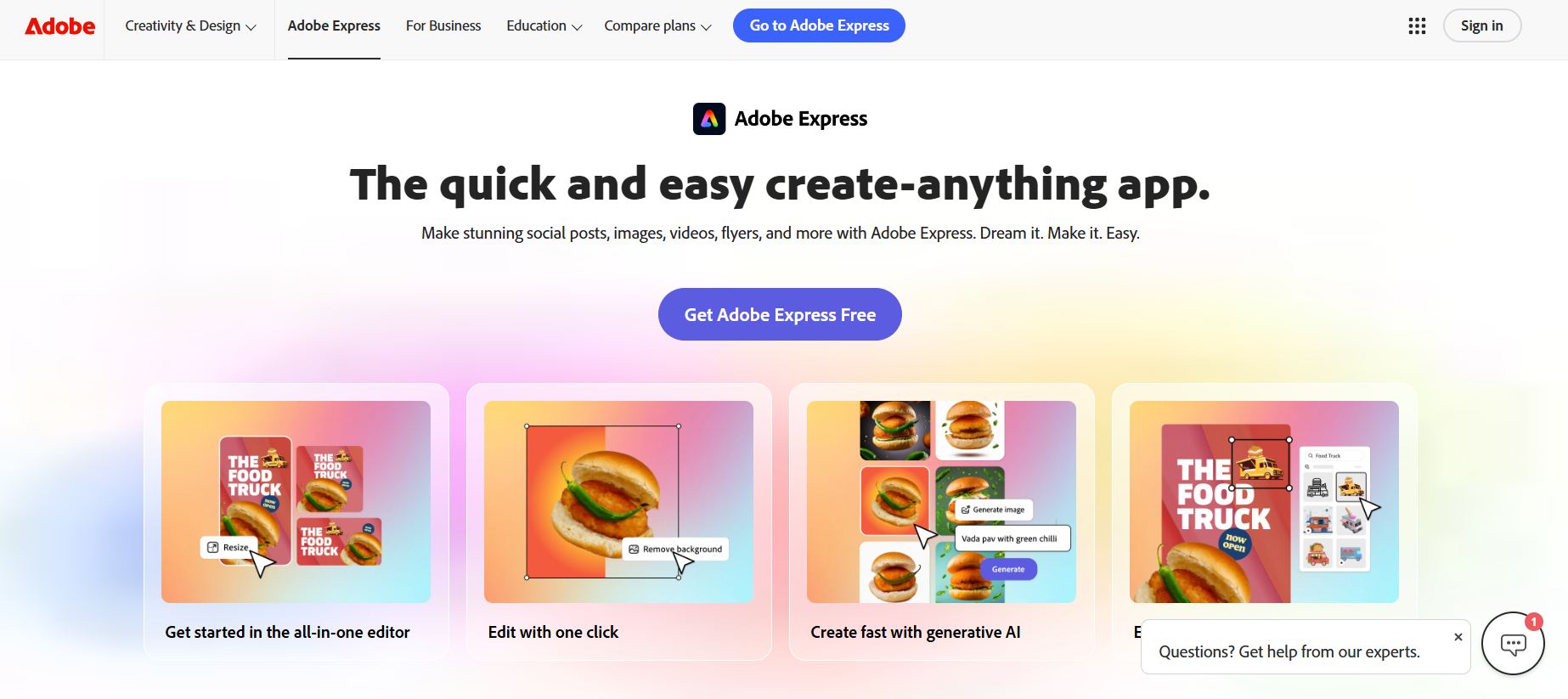
Adobe Express is a versatile design platform that includes a simple but powerful video editor. Its "Animate from Audio" feature allows students to create animated characters that lip-sync to their voice recordings automatically, making educational content highly engaging.

  • Best For: All-in-one design with powerful "Animate from Audio" features.
  • Use Case Example: Creating a fun animated character for a history project by simply uploading a recorded voiceover.
  • Pricing Details: Excellent Freemium Model. Free plan includes the animation features and monthly AI credits.
  • What You’ll Need: A web browser.
  • Learning Curve: Beginner. Clean and user-friendly interface.
  • What to Watch Out For: Basic video editing capabilities; not intended for complex filmmaking.
Otter.ai

7. Otter.ai

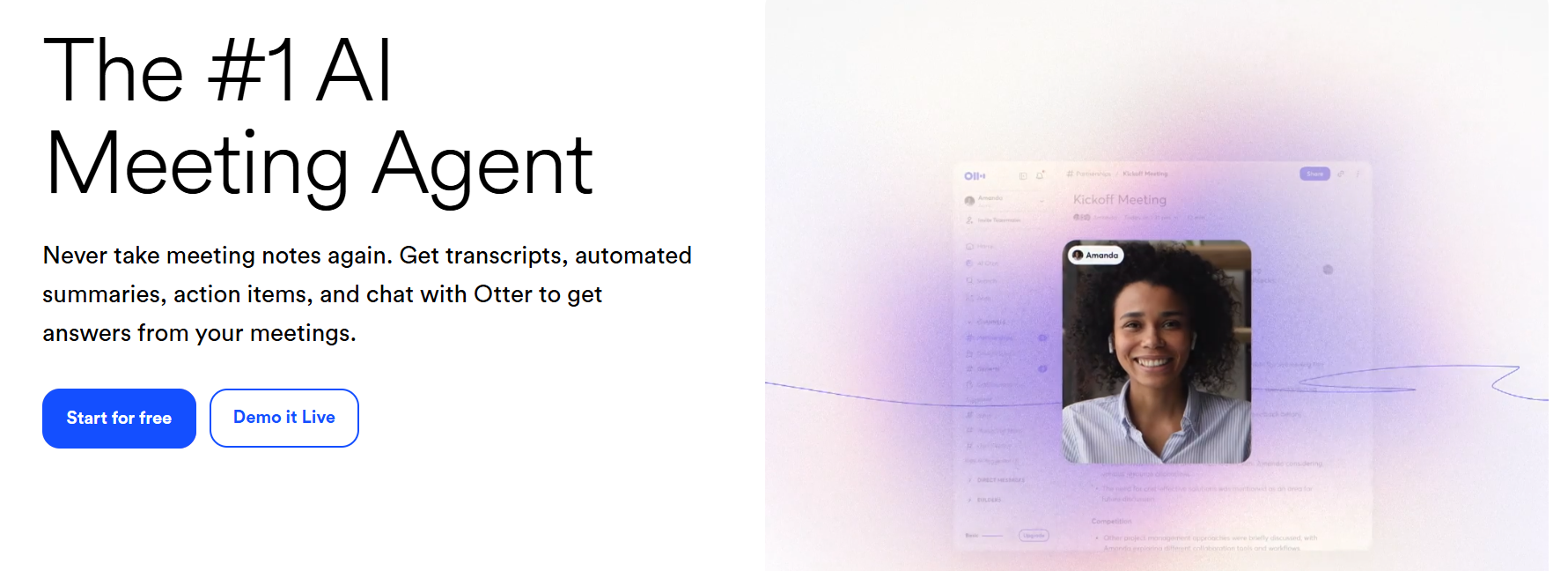
Otter.ai is an essential tool for transcribing audio from lectures, interviews, and videos into searchable text. It uses AI to generate full documents with speaker labels and timestamps, which are perfect for creating subtitles or written project summaries.

  • Best For: Transcribing lectures and interviews into searchable text.
  • Use Case Example: Uploading the audio of an interview for a documentary project to get an accurate written transcript in minutes.
  • Pricing Details: Generous Freemium Model. Free plan offers 300 minutes of transcription per month.
  • What You’ll Need: A web browser or the mobile app.
  • Learning Curve: Beginner. Simply upload and wait for the AI to process.
  • What to Watch Out For: Transcription may struggle with heavy accents or complex technical terminology.
ElevenLabs

8. ElevenLabs

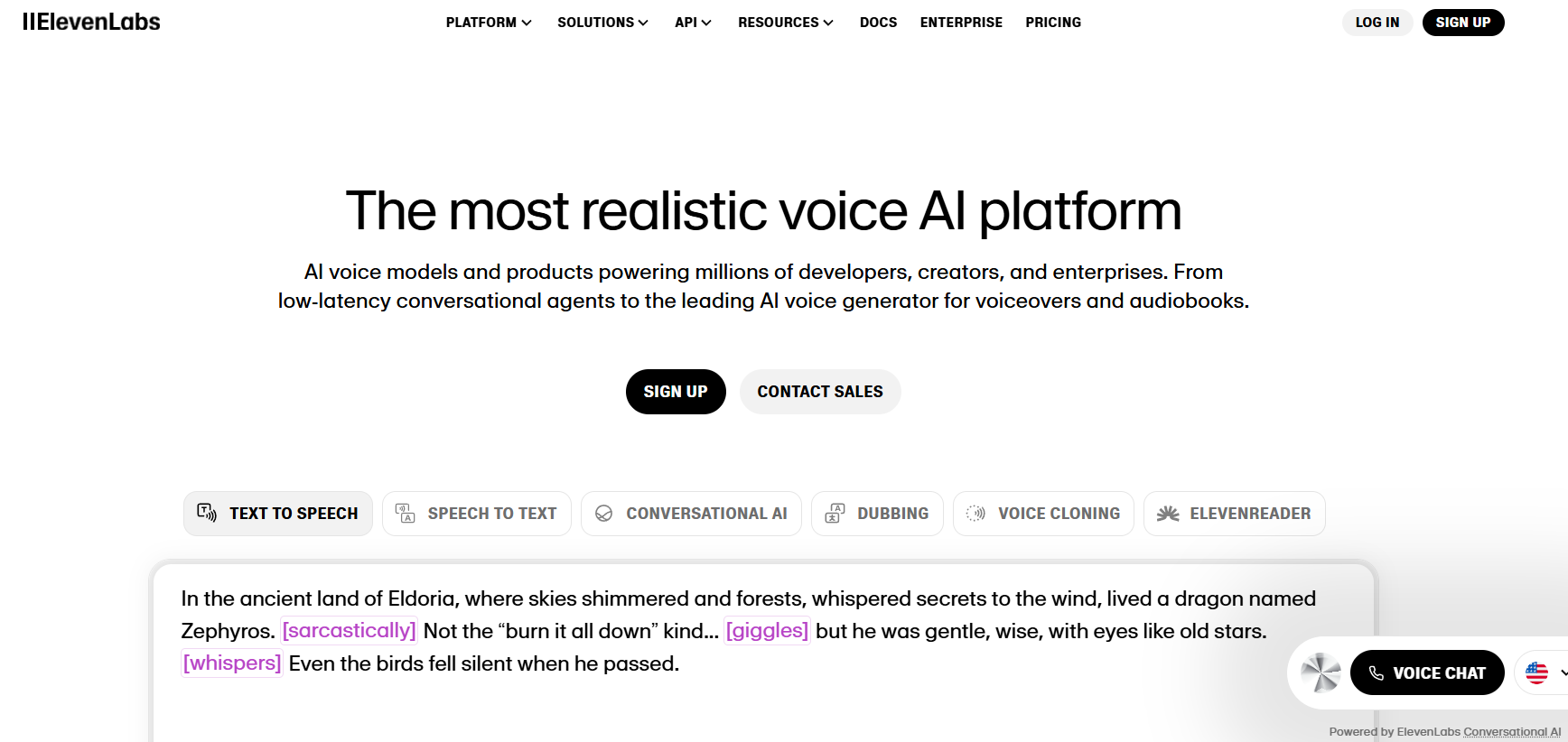
ElevenLabs is the world leader in AI voice technology. It allows you to create incredibly realistic text-to-speech voiceovers for your videos. The quality is so high that it is often impossible to distinguish its AI voices from real human recordings, making it perfect for student films.

  • Best For: Creating high-quality, realistic text-to-speech voiceovers.
  • Use Case Example: A student generates a professional-sounding narrator voice for their short film by simply typing the script.
  • Pricing Details: Freemium (with credits). Free plan allows 10,000 characters per month.
  • What You’ll Need: A web browser.
  • Learning Curve: Beginner. Just type the text and select a voice.
  • What to Watch Out For: Free plan is for non-commercial use only; credit consumption increases with complexity.
Soundful

9. Soundful

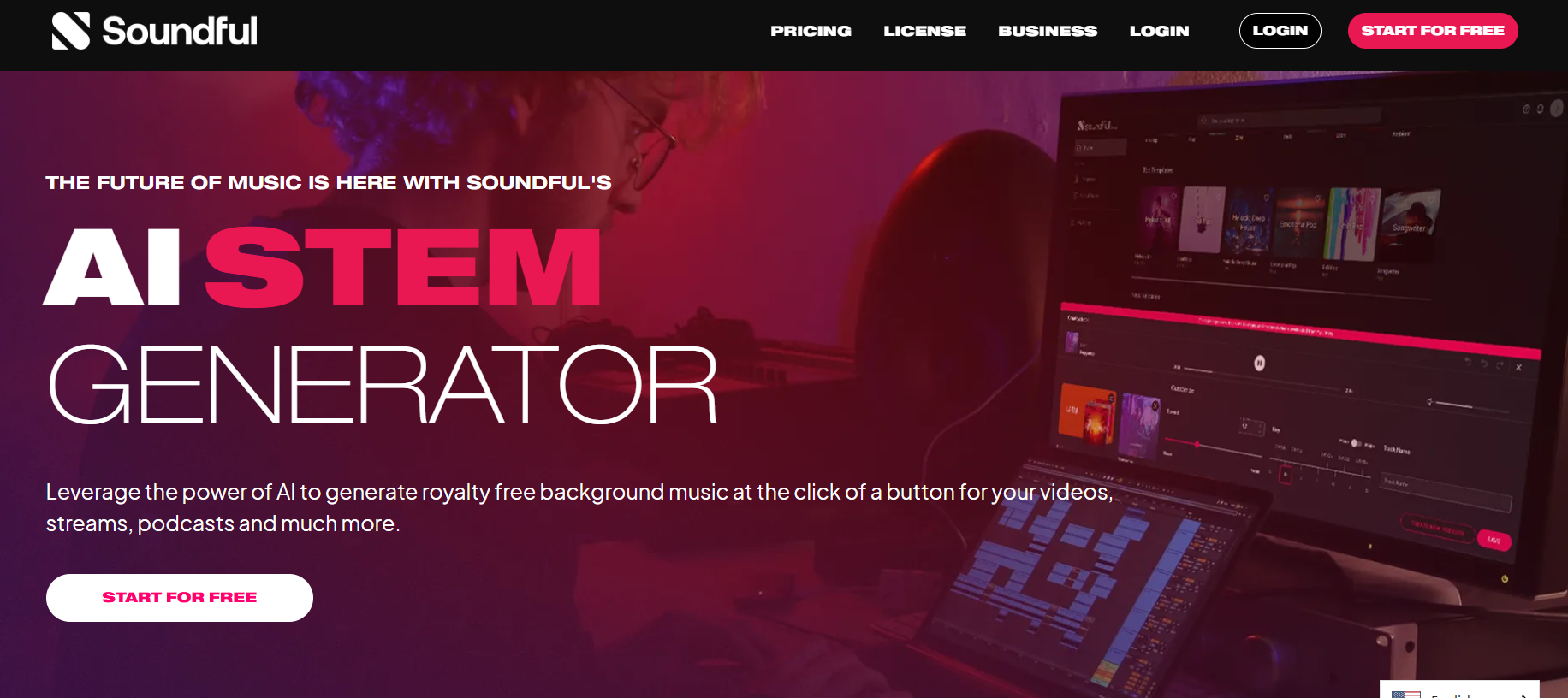
Soundful uses AI to generate unique, royalty-free background music for your videos. You can choose a genre and mood, and the AI creates a custom track tailored to your needs, solving the problem of finding music without copyright issues.

  • Best For: Generating unique, royalty-free background music for videos.
  • Use Case Example: Generating a tense cinematic score for a student film by simply selecting the "Cinematic" genre and "Tense" mood.
  • Pricing Details: Excellent Free Plan. Free-forever plan allows unlimited generation for non-commercial projects.
  • What You’ll Need: A web browser.
  • Learning Curve: Beginner. Simple selection of genre and mood.
  • What to Watch Out For: Free plan is for non-commercial use only; paid plan required for monetization.
Luvvoice

10. Luvvoice

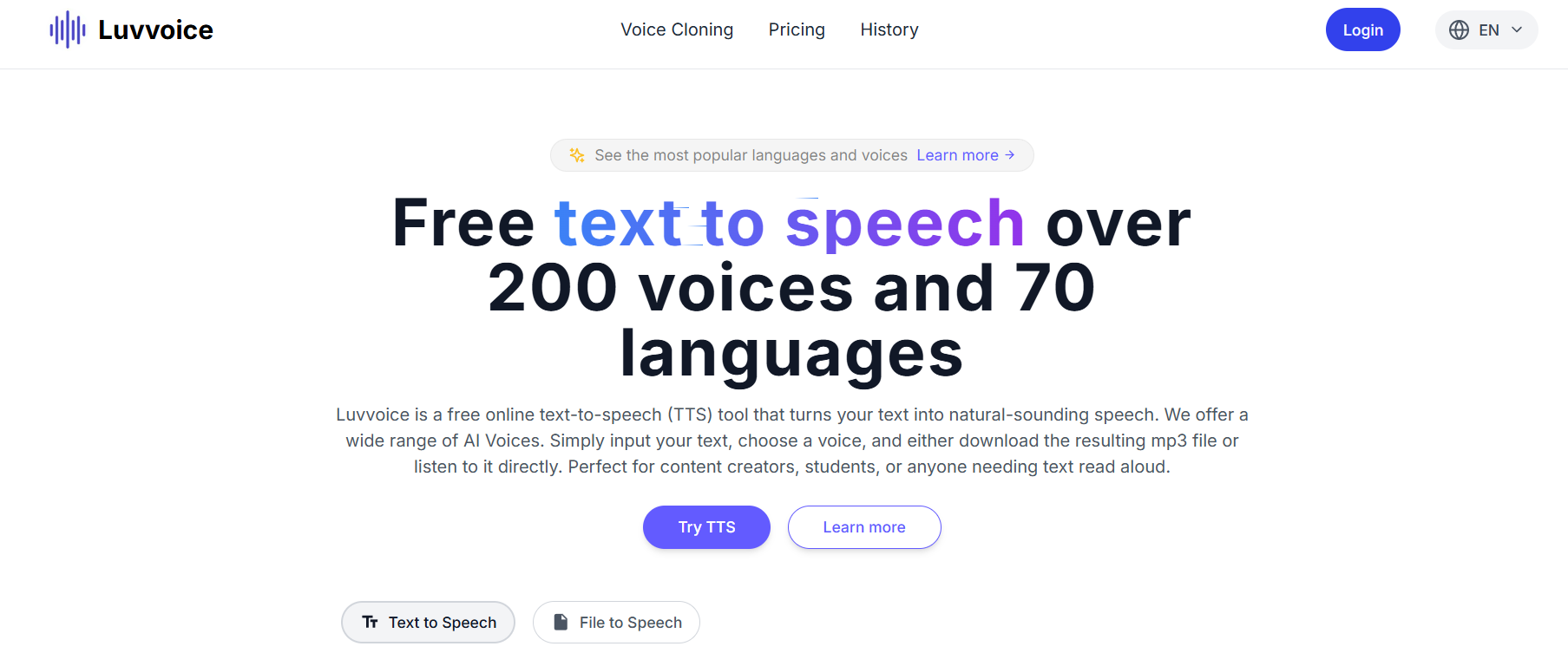
Luvvoice specialize in AI voice cloning and high-quality text-to-speech. It allows you to create a digital replica of your own voice, ensuring a consistent narrator across a series of video tutorials even when you don't have time to record.

  • Best For: AI voice cloning and custom text-to-speech voices.
  • Use Case Example: A student clones their own voice to quickly generate audio for a long series of educational videos.
  • Pricing Details: Freemium (with credits). Free plan provides credits to experiment with cloning features.
  • What You’ll Need: High-quality audio sample for cloning and a web browser.
  • Learning Curve: Beginner. Clean and easy-to-navigate interface.
  • What to Watch Out For: Voice cloning quality depends on the provided audio sample; limited free credits.

Which Tool Should You Start With?

AI Tools Selection Guide - India Should Know

Feeling a bit overwhelmed by the options? Here’s a quick guide:

  • All-in-One AI Editing: If you want the best all-in-one editor, start with Descript because its text-based editing will completely change the way you think about video.
  • Simple Web-Based Creation: If you want a simple, browser-based editor, use Kapwing since its free plan is one of the most generous available for students.
  • Pro Voiceovers: If you need a professional voiceover for your project, go straight to ElevenLabs because the quality of its free voices is unmatched.
  • Custom Background Music: If you need unique background music, use Soundful as its free plan is perfect for any non-commercial student project.

Your Journey into AI-Powered Content Creation Starts Now

As you can see, you no longer need expensive software or a professional studio to create high-quality video and audio content. These AI tools act as your personal editor, sound engineer, and composer, helping you to bring your creative vision to life faster and more easily than ever before.

The best way to learn is by doing. Pick one tool from this list that solves a problem you’re facing with your current project and give it a try. You’ll be amazed at how much you can create with a smart AI assistant by your side.

Written By

Prateek Singh.

Last Updated – Febuary, 2026

About The Author

Prateek is a self-taught practitioner who believes the only real way to learn is by doing. He created IndiaShouldKnow.com from scratch, using AI as his primary learning partner to navigate everything from web development and UI/UX design to color theory and graphic engineering.

He works within the “engine room” of AI daily, using these tools to manage professional workflows including data visualization, digital marketing systems, and SEO architecture. Having personally tested and refined dozens of AI models across hundreds of real-world scenarios, Prateek focuses on the “how” behind the technology. He shares his self-taught workflows and prompting pillars to help others move past basic chat interactions and start using AI as a high-precision tool for their own goals.

FAQs About AI Use.

Can I trust every answer an AI tool gives me for my studies?

A: No, you should not trust every answer completely. Think of an AI as a super-smart assistant that has read most of the internet—but not every book in the library is accurate.

  • AI can sometimes make mistakes, misunderstand your question, or use outdated information.

     
  • It can even “hallucinate,” which means it confidently makes up an answer that sounds real but is completely false.


Rule of Thumb: Use AI answers as a great starting point, but never as the final, absolute truth. Always double-check important facts.

A: Verifying information is a crucial skill. It’s like being a detective for facts. Here are four simple steps:

  1. Check Your Course Material: Is the AI’s answer consistent with what your textbook, lecture notes, or professor says? This is your most reliable source.

  2. Look for Reputable Sources: Ask the AI for its sources or search for the information online. Look for links from universities (.edu), government sites (.gov), respected news organizations, or published academic journals.

  3. Cross-Reference: Ask a different AI the same question, or type your question into a standard search engine like Google. If multiple reliable sources give the same answer, it’s more likely to be correct.

  4. Use Common Sense: If an answer seems too perfect, too strange, or too good to be true, be extra skeptical and investigate it further.

A: This is a very important difference. It’s all about who is doing the thinking.

  • Using AI for Research (Good ✅):

    • Brainstorming topics for a paper.

    • Asking for a simple explanation of a complex theory.

    • Finding keywords to use in your library search.

    • Getting feedback on your grammar and sentence structure.

    • You are using AI as a tool to help you think and write better.

  • Using AI to Plagiarize (Bad ❌):

    • Copying and pasting an AI-generated answer directly into your assignment.

    • Asking the AI to write an entire essay or paragraph for you.

    • Slightly rephrasing an AI’s answer and submitting it as your own original thought.

    • You are letting the AI do the thinking and work for you.

A: Using AI ethically means using it to learn, not to cheat. Here’s how:

  1. Know the Rules: First and foremost, read your school’s or professor’s policy on using AI tools. This is the most important step.

  2. Be the Author: The final work you submit must be yours. Your ideas, your structure, and your arguments. Use AI as a guide, not the writer.

  3. Do the Heavy Lifting: Use AI to understand a topic, but then close the chat and write your summary or solve the problem yourself to make sure you have actually learned it.

  4. Be Transparent: If you used an AI in a significant way (like for brainstorming), ask your professor if you should mention it. Honesty is always the best policy.

A: Yes, an AI’s answer can definitely be biased. Since AI learns from the vast amount of text on the internet written by humans, it can pick up and repeat human biases.

Here’s how to spot potential bias:

  • Look for Opinions: Does the answer present a strong opinion as a fact?

  • Check for One-Sidedness: On a topic with multiple viewpoints (like politics or economics), does the AI only show one side of the argument?

  • Watch for Stereotypes: Does the answer use generalizations about groups of people based on their race, gender, nationality, or other characteristics?

To avoid being misled by bias, always try to get information from multiple, varied sources.

A: It is best to be very careful. You should not consider your conversations with most public AI tools to be private.

  • Many AI companies use your conversations to train their systems, which means employees or contractors might read them.

     
  • There is always a risk of data breaches or leaks.


A Simple Safety Rule: Do not upload or paste any sensitive information that you would not want a stranger to see. This includes:

  • Personal identification details.

  • Confidential research or unpublished papers.

  • Your school assignments before you submit them.

  • Any financial or private data.

Don’t get left behind in the age of AI. 🚀

The world is changing fast, and AI is the reason. Join the India Should Know community to get 1 simple weekly email with:

AI Speed-Hacks:

Do 4 hours of work in 30 minutes.

The Vault:

Access our private library of Gemini & ChatGPT prompts.

Career Edge: 

Smart tips to stay ahead in school and at the office.

Sign Up To Get Our Introduction To Prompt Building PDF

No spam. Just the good stuff, every Tuesday.

Scroll to Top